For businesses running WordPress websites, security requires more than installing the latest version of the platform. Outdated plugins, vulnerable themes, unsupported PHP versions, weak passwords, and misconfigured hosting environments can all create opportunities for attackers.
The key is to approach a security upgrade systematically: identify the vulnerability, secure the website, apply the appropriate patches, and verify that everything works as expected.
Here is how to upgrade your WordPress website effectively after a security vulnerability is discovered.
1. Identify the Vulnerability Before Making Changes
The first step is understanding what has made your website vulnerable. Blindly updating software without investigating the issue may leave the original security weakness unresolved.
Start by checking your WordPress dashboard for pending updates to the core platform, plugins, and themes. Review security advisories from the relevant developers to determine whether any installed components are affected.
You should also check your hosting environment, particularly your PHP version and whether it receives security updates.
Common areas to investigate include:
- Outdated WordPress core installations.
- Vulnerable or abandoned plugins and themes.
- Unsupported PHP versions.
- Suspicious administrator accounts or login activity.
- Unusual file modifications or unexpected redirects.
- Hosting configurations that expose sensitive files.
If a specific vulnerability has been disclosed, determine whether a security patch is available and whether your website is affected.
The official WordPress Security Handbook provides guidance on identifying and addressing common security risks.
2. Back Up Your Website Before Upgrading
Before making significant changes, create a complete backup of your website.
An upgrade can sometimes cause compatibility issues, particularly when the website relies on older plugins, custom code, or third-party integrations. A reliable backup gives you a recovery option if something goes wrong.
Your backup should include:
- The complete WordPress database.
- WordPress core files.
- Installed themes and plugins.
- Uploaded images and other media.
- Configuration files and relevant server settings.
Store a copy in a separate, secure location rather than relying exclusively on your hosting server.
Important: A backup is only useful if it can be restored. Verify that your backup files are complete and that your restoration process works before proceeding.
If your website is already compromised, preserve a copy of the affected environment for investigation. Do not assume that its latest backup is clean.
3. Update WordPress Core, Themes, and Plugins
Outdated software is a common source of WordPress security problems. Once you have identified the affected components and secured a recovery point, install the appropriate security updates.
Start with the official WordPress core release that addresses the vulnerability. Next, update affected plugins and themes to their patched versions.
Follow these practices during the process:
- Download WordPress core files from the official WordPress website.
- Install plugin and theme updates from trusted sources.
- Remove unused plugins and themes that are no longer required.
- Replace abandoned components when suitable maintained alternatives exist.
- Review compatibility requirements before upgrading interconnected components.
Avoid assuming that updating WordPress core automatically resolves vulnerabilities in third-party plugins or themes. Each component must be assessed separately.
For detailed instructions, consult the official WordPress Upgrade Guide.
4. Upgrade PHP to a Supported Version
WordPress runs on PHP, the server-side programming language responsible for executing much of the website’s functionality.
Using an outdated PHP version can expose a website to known security weaknesses and compatibility problems. However, upgrading PHP requires careful planning because older themes, plugins, and custom code may not support newer versions.
Before upgrading PHP:
- Check your hosting provider’s available PHP versions.
- Review the compatibility requirements of WordPress, your plugins, and your theme.
- Test the website on a staging environment using the intended PHP version.
- Resolve warnings, errors, and compatibility issues.
- Upgrade the production environment and verify its functionality.
Choose a PHP branch that is actively supported and compatible with your complete website setup.
Remember: Updating PHP does not automatically remove malicious code or repair a compromised WordPress installation. It addresses the PHP runtime, not every vulnerability within the application.
5. Check Whether Your Website Has Already Been Compromised
Patching a vulnerability is essential, but it does not guarantee that an attacker has not already gained access.
If the vulnerability was publicly known or your website displays suspicious behaviour, conduct a security investigation before considering the work complete.
Look for unexpected administrator accounts, unfamiliar PHP files, modified core files, suspicious scheduled tasks, unauthorised redirects, and unusual activity in server logs.
Use a reputable security scanner and compare WordPress core files against clean official versions where appropriate.
If you find evidence of a compromise:
- Restrict access to the affected website if necessary.
- Preserve relevant logs and evidence.
- Remove malicious code and unauthorised access mechanisms.
- Change compromised credentials and invalidate active sessions.
- Review hosting, database, FTP/SFTP, and administrator access.
- Restore clean files or backups when appropriate.
For serious incidents, engage a qualified security professional. Simply deleting suspicious files without understanding how the attacker gained access may leave the underlying problem unresolved.
6. Strengthen WordPress Access and Server Security
Once the immediate vulnerability has been addressed, strengthen the website’s security controls to reduce the risk of another incident.
Start with administrator access. Use strong, unique passwords and enable multifactor authentication where available. Review user accounts and remove unnecessary privileges.
You should also consider:
- Limiting administrator permissions to trusted personnel.
- Disabling the built-in theme and plugin code editor when appropriate.
- Applying secure file permissions.
- Using HTTPS throughout the website.
- Deploying a reputable web application firewall.
- Monitoring login attempts and file changes.
- Restricting access to sensitive configuration files.
Review the hosting environment as well. Website security depends on the application, server configuration, access controls, and surrounding infrastructure—not WordPress alone.
Refer to the official WordPress Hardening Guide for additional recommendations.
7. Test the Website After the Upgrade
An upgrade is not complete until the website has been tested.
Security patches, PHP upgrades, and plugin changes can affect functionality. A website may load normally while important features, such as forms or checkout, remain broken.
Test the following areas:
- Homepage and important landing pages.
- Navigation menus and internal links.
- Contact forms and enquiry submissions.
- Login and account management.
- Ecommerce checkout and payment integrations, if applicable.
- Mobile responsiveness.
- Website speed and error logs.
- SEO essentials, including indexing directives and canonical URLs.
Check for unexpected redirects, broken layouts, JavaScript errors, and PHP warnings.
For business-critical websites, perform these checks in a staging environment before deploying changes to the live site whenever possible.
8. Establish a Continuous Website Maintenance Plan
Security is not a one-time task. New vulnerabilities can emerge after an upgrade, making ongoing maintenance essential.
Establish a routine for checking software updates, reviewing security advisories, testing backups, and monitoring suspicious activity.
A practical maintenance plan should include:
- Regular WordPress core, plugin, theme, and PHP compatibility reviews.
- Automated backups with periodic restoration tests.
- Security scanning and file-integrity monitoring.
- Access reviews and credential management.
- Uptime, performance, and error monitoring.
- A documented incident response and recovery procedure.
Apply critical security patches promptly, following appropriate compatibility checks and deployment procedures. Avoid leaving known, exploitable vulnerabilities unaddressed simply because the website appears to be functioning normally.
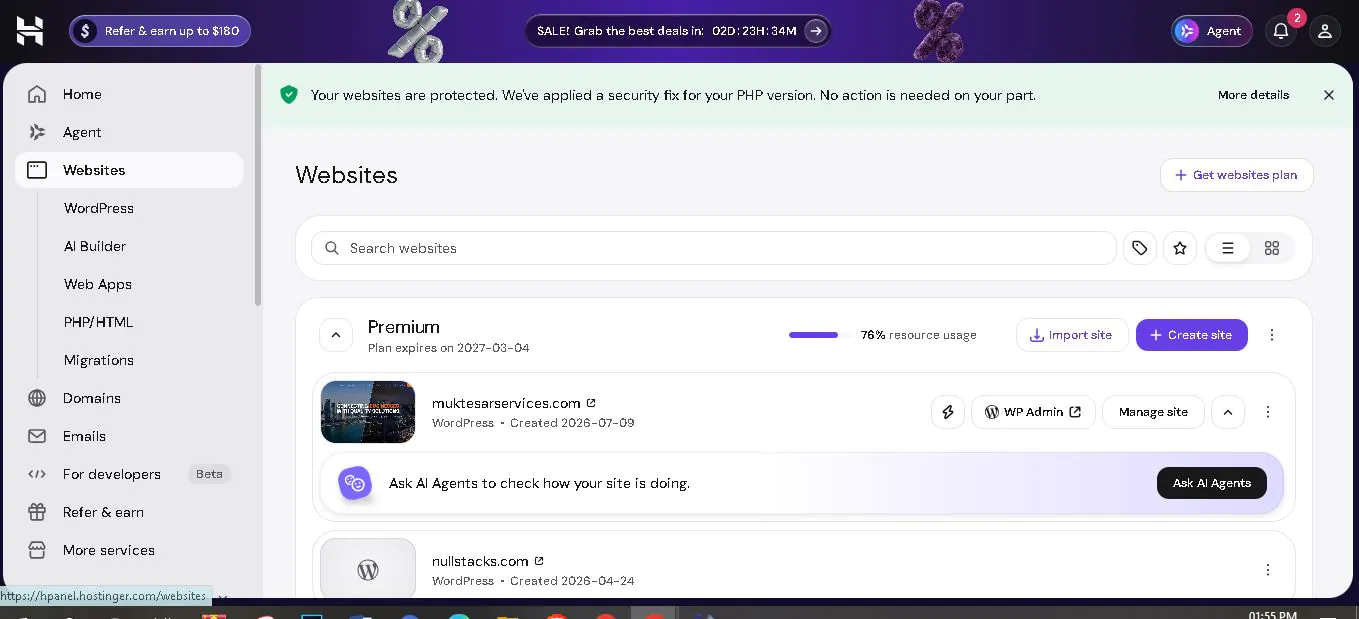
9. How Hostinger Helps Protect Websites Against PHP Security Threats
Your hosting provider plays an important role in website security. While vulnerabilities in PHP applications, WordPress plugins, and themes can expose websites to attacks, a hosting environment with strong security controls can help reduce the risk.
Hostinger provides several security measures designed to protect its hosting infrastructure and customer websites. These include firewall protection, server monitoring, anti-malware measures, and security modules that help strengthen its hosting environment. Depending on the hosting plan, users may also have access to automated malware scanning, backups, and additional security features.
Hostinger’s Malware Scanner can identify malicious code in website files and help users investigate potential infections. However, its documented scanner does not cover every possible source of compromise, including malicious code stored in the WordPress database or unauthorised administrator accounts.
For this reason, hosting security should be treated as one layer of a broader protection strategy rather than a complete solution.
If your WordPress website is hosted on Hostinger, take the following precautions:
- Check for security updates: Keep WordPress core, plugins, and themes updated, even when your hosting provider maintains the server infrastructure.
- Review your PHP version: Use a supported PHP version compatible with your website and its installed components.
- Run malware scans: Use the available scanning tools to identify suspicious files and investigate any reported threats.
- Secure administrator access: Use strong passwords, enable two-factor authentication, and remove unnecessary user accounts.
- Maintain independent backups: Keep reliable backups and periodically test your recovery process.
- Investigate suspicious activity: Check for unexpected redirects, unfamiliar files, unauthorised changes, and unusual login activity.
Hostinger’s infrastructure security can help reduce exposure to certain threats, but it does not guarantee immunity from PHP vulnerabilities or WordPress attacks. A vulnerable plugin or compromised administrator account can still put a website at risk.
The most effective approach combines secure hosting, timely software updates, appropriate access controls, regular monitoring, and professional remediation when an incident occurs.
Conclusion
Upgrading your WordPress website after a security vulnerability requires more than clicking the update button. You need to identify the affected component, create a reliable backup, apply the appropriate patches, check for existing compromise, strengthen access controls, and test the website thoroughly.
For businesses, a proactive approach helps protect customer data, minimise downtime, and maintain the reliability of their digital presence.
Need help upgrading or securing your WordPress website?
NullStack Technologies provides WordPress development and website maintenance services to help businesses keep their websites functional, updated, and easier to manage. If your website is running outdated software, experiencing suspicious activity, or requires a technical review, a structured security and maintenance assessment is a sensible place to start.